How to make App Store screenshots in Figma
Make App Store screenshots in Figma: frame sizes, auto layout, Community templates and device frames, JPG export, naming, languages, and where it gets slow.
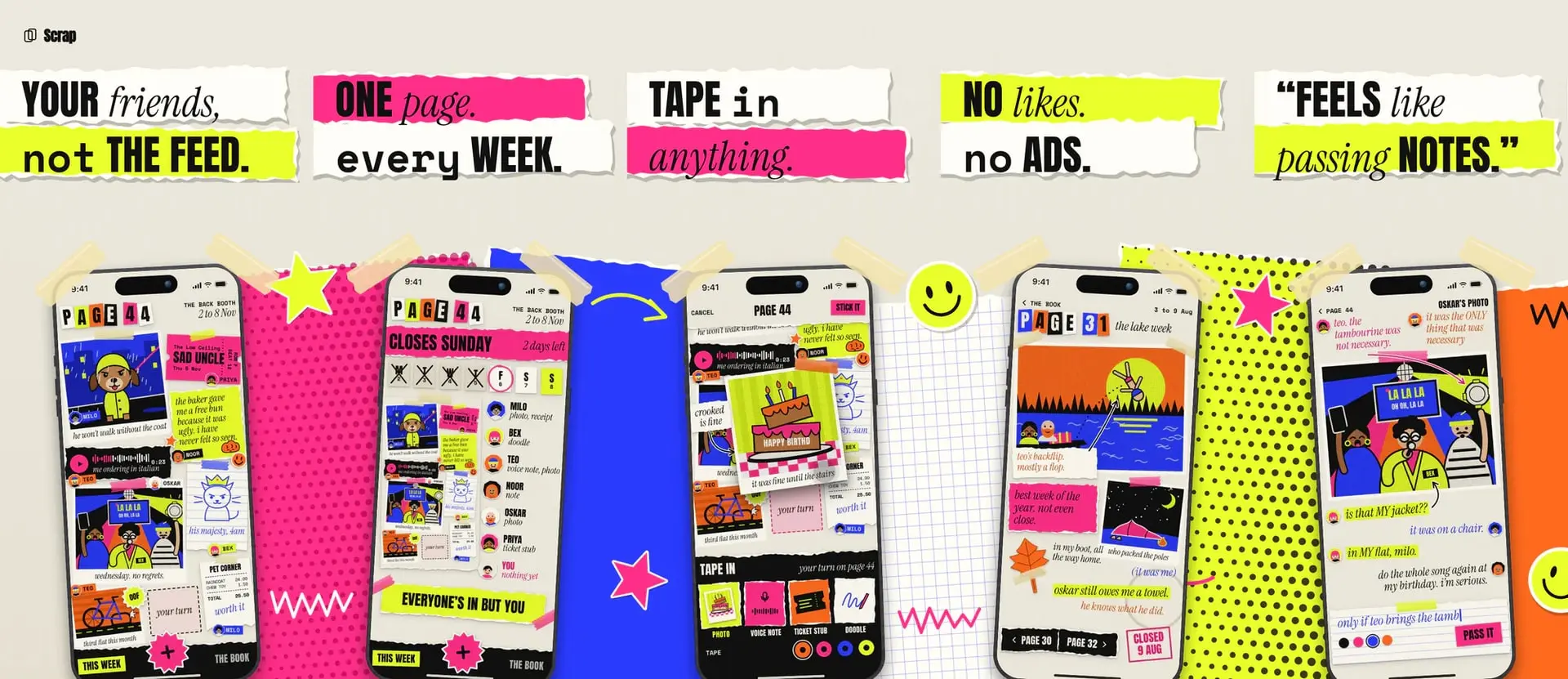
To make App Store screenshots in Figma, create one frame per slide at an exact Apple size such as 1206 × 2622, lay out the caption and phone with auto layout, make the phone a component, and export every frame as JPG at 1x. Use JPG because Figma can't export a PNG without an alpha channel, and Apple says screenshots can't include one.
The Figma steps come from Figma's help center and the store rules from Apple's screenshot specifications, checked in November 2026. We're Intenseloop, and we make AppScreen (appscreen.pro), a browser editor for the same job. The last section says when it's the quicker path.
Figma App Store screenshot templates
Figma Community has plenty of templates to start from. The listing for Google Play & App Store Screenshot Template says one replaced screenshot updates across all phone mockups. Searches for this topic also bring up AppStore - Screenshot Builder and 500+ App store screenshot templates.
These are other people's files, so look at two things:
- Sizes. Apple's list changes when new devices ship, so compare every frame with it.
- Credit. Figma says free files use CC BY 4.0, which allows commercial use and requires credit to the creator.
Frame sizes
Press F or A for the Frame tool, draw a frame, and type the size into W and H.
If your UI is consistent across sizes, Apple says you only need the highest required resolution, and App Store Connect scales it down. The full lists are in App Store screenshot sizes and Google Play sizes.
Work at real pixels, so the number in the W field is the number in the file. Be careful with tutorials that say to export at 2x. A 1206 × 2622 frame at 2x comes out at 2412 × 5244, which isn't on Apple's list. Scaling only suits a smaller frame, such as 402 × 874 at 3x.
Turn on Clip content so a phone can run off the slide.
Build one slide with auto layout
Select the frame and press Shift A to add auto layout. Start from these numbers on a 1206 px slide.
- Set the flow to Vertical, with 96 px of padding on the sides, about 375 px on top, 0 at the bottom and a gap of 96 px.
- Set the frame's width and height to Fixed. Hug contents would resize it and lose the exact pixel size.
- Add the caption at about 96 px, with width on Fill container and height on hug. A long translation then wraps and pushes the phone down.
- Add the phone at about 960 px wide, and let it run past the bottom edge.
Set the background as a fill on the frame, then duplicate the frame for the other slides.
Device frames
Apple's product bezels come as Photoshop and PNG files. So place Apple's PNG in your file, or use Community frames, such as iPhone 17 & 17 Pro Device Frames or Google Pixel minimal device mockup frames.
Build the phone as a component:
- Draw a rectangle the size of the bezel's screen, with a matching corner radius. Figma treats images as fills, so your screenshot goes on this rectangle, in Fill mode, which scales it to cover and may clip an edge.
- Put the bezel on top and make the pair a component.
- Drop an instance on each slide and change the image fill there.
Changes to the main component reach its instances, so moving to a new iPhone later is one edit. Apple also has rules on frames and content.
Connected panoramas
One giant canvas or separate frames? For a phone that crosses a seam, use one wide frame and slices.
- Make the frame as wide as all your slides. Five at 1206 px make 6030 × 2622.
- Add a column layout guide with a count of 5, type Stretch, margin 0 and gutter 0.
- Lay out the phones across the columns and keep each caption inside its column.
- Draw one slice over each column. Figma says "only content within the slice's boundaries will be exported."
You'll place phones by hand. Figma also scales any upload over 4096 px on its longest side, so a 6030 px background image comes in soft. Build wide backgrounds from gradients and shapes. To skip slices, export the whole frame and cut it with the panorama splitter.
Export at the right size
Select your frames or slices, click the plus in the Export section, and choose JPG at 1x. Shift Command E on Mac or Shift Ctrl E on Windows opens the bulk Export modal, which lists each item's scale, format and dimensions.
Figma's export docs give the reason: "It's not possible to export PNGs without an alpha value." Apple's rule is "Images can't include alpha channels or transparencies." We wouldn't bet a release on an opaque PNG getting through, and JPGs can't hold transparency.
The trade-off is that Figma recommends PNG for images with text, because JPG compression can hurt readability. Raise Image quality if captions look soft, or export PNG and flatten it. On a Mac, sips -s format jpeg -s formatOptions best in.png --out out.jpg converts it. The screenshot resizer also removes transparency, in your browser.
Name frames so exports sort themselves
Figma names exported files after layers, and slashes in a name become folders. A frame named en-US/iphone/01-overview exports as 01-overview inside en-US/iphone. The numbers keep files in order, and you can reorder them in Media Manager after upload.
Handling many languages
App Store Connect lists 50 languages and locales. A new language starts with your primary language's screenshots until you upload its own.
For captions, Figma suggests string variables and modes for "switching languages between different localized designs."
- Create a collection with one mode per language and one string variable per caption.
- Bind each caption to its variable.
- Duplicate the page for each language and set that page's mode. Layers on Auto take their parent's mode.
Modes need a paid plan, and Figma's plan table allows up to 10 per collection on Professional and 20 on Organization. Figma also has no image variable type, so modes change captions but not app screens. At five slides, three sets and six languages, that's 90 files whose screens you swap by hand.
Common questions
What are the minimum screenshot sizes for the App Store? There's no minimum as such. Apple accepts only the exact sizes it lists, and you need at least one screenshot per required device.
Can you turn a screenshot into an editable Figma design? You don't need to for this job, since a screenshot goes in as an image fill. Figma's Vectorize image makes vector layers, but its examples are symbols, lettering and illustrations, not app interfaces.
Where Figma gets slow
A Figma set takes the most work in three places:
- Many sizes. Each device set is another round of frames to keep in line, and iPad's proportions differ, so you rebuild the layout for it.
- Swapping screens. Each new capture means changing an image fill on every slide it appears on, in every set.
- Heavy files. Figma says many high-resolution images "may look blurry at first", and exports can take longer.
We recommend AppScreen as the quicker path. Store sizes and device frames are built in, so there's no frame setup or bezel component to build. Every slide sits on one panorama canvas, so a phone crosses a seam without slices, and it exports PNGs with no alpha channel, per slide or as the whole panorama. Free needs no account or card, and the first 3 slides of a panorama export clean. Slides after the third carry a watermark on Free, as does every slide of a Pro template or tablet size, and Pro removes it. Pro is $9, paid once, and it lets your coding agent build the set on the canvas while you watch. Start from one of 50+ templates.
SourcesEvery number in this post comes from these pages.23 pages · Checked 3 Nov 2026
- help.figma.com/hc/en-us/articles/13402894554519-Export-formats-and-settings-for-static-designsPNG alpha, JPG quality, scale
- help.figma.com/hc/en-us/articles/360040028114-Export-from-Figma-DesignBulk export, slices, slash folders
- help.figma.com/hc/en-us/articles/360041539473-Frames-in-Figma-DesignFrame tool, W and H, Clip content
- help.figma.com/hc/en-us/articles/360040451373-Guide-to-auto-layout-in-FigmaFlow, padding, gap, hug, fill, fixed
- help.figma.com/hc/en-us/articles/360038662654-Guide-to-components-in-FigmaComponents
- help.figma.com/hc/en-us/articles/360038665934-Edit-main-componentsMain component edits reach instances
- help.figma.com/hc/en-us/articles/360040028034-Add-images-and-videos-to-designsImages as fills, 4096 px limit
- help.figma.com/hc/en-us/articles/25427967539991-Adjust-image-or-video-propertiesFill mode
- help.figma.com/hc/en-us/articles/360052988373-Image-loading-and-performanceBlurry images, slower exports
- help.figma.com/hc/en-us/articles/360040450513-Create-layout-guidesColumn layout guide
- help.figma.com/hc/en-us/articles/14506821864087-Overview-of-variables-collections-and-modesString variables, variable types
- help.figma.com/hc/en-us/articles/15343816063383-Modes-for-variablesPage modes, Auto, plans with modes
- help.figma.com/hc/en-us/articles/360040328273-Compare-Figma-plans-and-featuresModes per collection by plan
- help.figma.com/hc/en-us/articles/360042296374-Figma-Community-copyright-and-licensingCC BY 4.0 on free files
- help.figma.com/hc/en-us/articles/38031452710807-Convert-static-images-to-vector-layersVectorize image
- figma.com/community/file/1582475131485311813/google-play-app-store-screenshot-template-auto-layout-mockupsTemplate listing
- figma.com/community/file/1600584030566600974/iphone-17-17-pro-device-framesiPhone frames listing
- figma.com/community/file/828949095331405744/google-pixel-minimal-device-mockup-framesPixel frames listing
- developer.apple.com/help/app-store-connect/reference/screenshot-specificationsSizes, alpha rule, scaling, Duo
- developer.apple.com/design/resourcesBezels as Photoshop and PNG
- developer.apple.com/help/app-store-connect/manage-app-information/upload-app-previews-and-screenshotsReordering in Media Manager
- developer.apple.com/help/app-store-connect/manage-app-information/localize-app-informationNew language defaults
- developer.apple.com/help/app-store-connect/reference/app-store-localizations50 languages and locales
Something out of date? Email support@appscreen.pro and we'll re-check it.