Letting an AI agent design your App Store screenshots
How AppScreen's MCP server lets Claude, Cursor, Codex, VS Code or ChatGPT build your screenshot panorama live in your open editor tab.
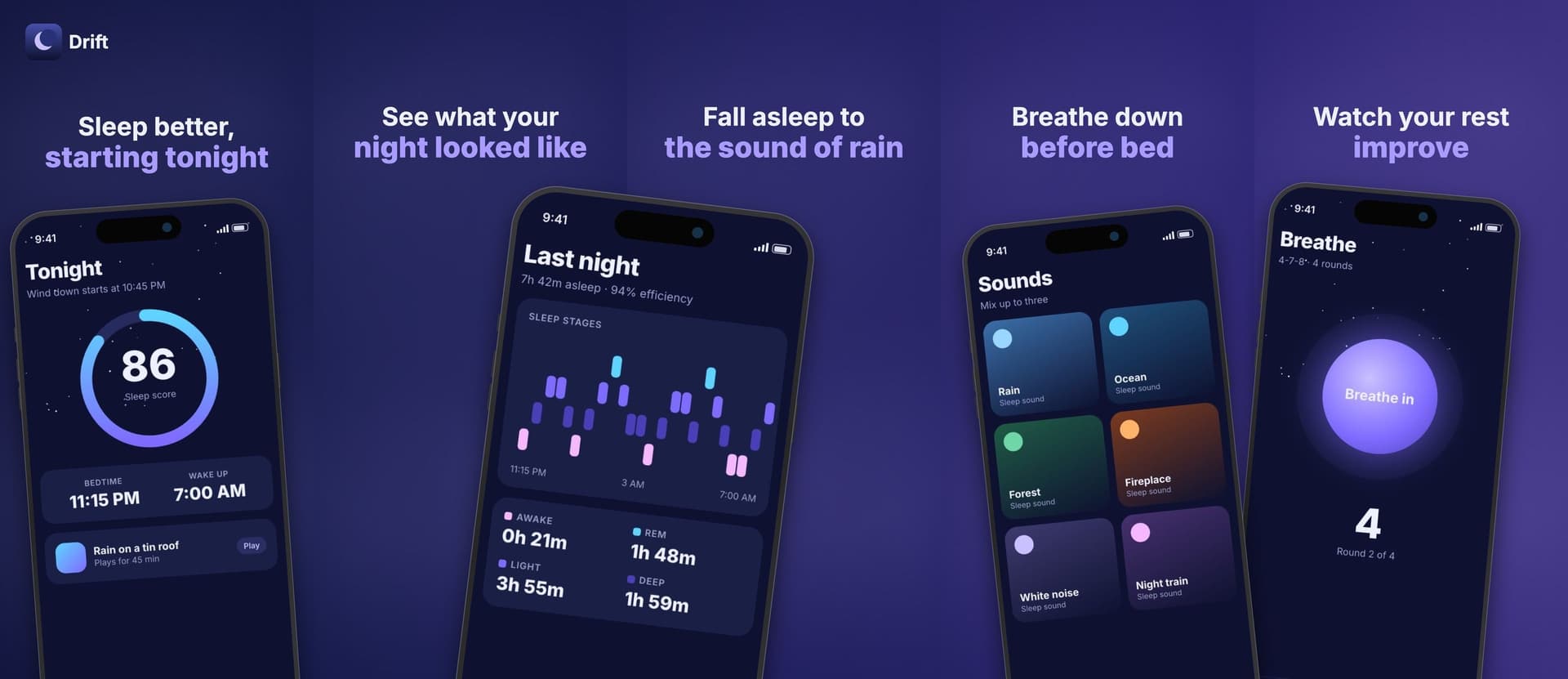
The slow part of App Store screenshots is the first draft. Placing five phones, writing five headlines, picking a gradient, nudging everything off the edges. Editing a draft is fast. So I wanted an AI agent to make the first draft while I watch, then hand the canvas back to me.
That's what AppScreen's MCP server does. You keep the editor open in a browser tab. Your agent connects to https://appscreen.pro/mcp. Every tool call runs in that tab, so you see phones appear and headlines change as the agent works. This post covers how it works and how to set it up.
Why the editor tab has to stay open
AppScreen keeps your work in the browser. The canvas isn't uploaded. That made one design choice easy. The agent doesn't get its own copy of your project on a server. It drives the editor you already have open.
When the agent calls a tool, the MCP server forwards it to your open tab, the editor applies the change, and the result goes back to the agent. If no editor tab is open, the call fails on purpose. I'd rather the agent stop than change a canvas nobody is looking at.
This also means you can step in at any moment. Drag a phone, change a color, hit undo. The agent reads the canvas again before its next move and sees what you did.
Which agents work
The server speaks Streamable HTTP, the standard remote MCP transport. The setup page at appscreen.pro/mcp has one-click or copy-paste setup for:
claude mcp add --transport http --scope user appscreen https://appscreen.pro/mcpservers entry with "type": "http" and the URLcodex mcp add appscreen --url 'https://appscreen.pro/mcp'You can also paste https://appscreen.pro/mcp into a chat with your agent and ask it to set itself up. The URL returns setup instructions written for agents.
Signing in
After you add the server, your client shows an Authenticate or Connect step. That opens a Google sign-in for AppScreen. You sign in in the client, not on the setup page. It's the same Google account you use for AppScreen Pro in the editor.
Agent access is a Pro feature. Pro is $9 once. If you aren't Pro yet when the agent first calls a tool, the agent gets a checkout link that opens in your AppScreen tab. Once you pay there, the agent can carry on in the same session.
What the agent can do
The agent sees the same things you see in the editor, as tools. A few of them:
state_getlayer_addPhone, layer_addText, layer_addLogolayer_updatebackground_set, pattern_setpanel_add, panel_remove, panel_reorderpreset_applyhistory_undo, history_redoproject_saveexport_panels, export_panoramaExports download in your browser tab, as if you clicked Export. The agent gets back the file name and size, not the image.
The agent works in a loop. Read the canvas, change something, read it again. Every add tool returns an id the agent can use right away, and state_get after each change keeps it from guessing.
Teaching it taste
An agent with only the tools can make a canvas that is valid and still looks bad. The easy path is to apply a preset, swap the headline text and stop. Phones end up at different sizes on each slide. Text runs into the edge. A phone hangs across the seam and gets sliced in half on export.
So the server ships layout rules with the tools. Before it places anything, the agent reads a composition guide and gets a grid with exact numbers for the current target. On a 1284 × 2778 iPhone panel that means a safe margin, a headline position and size, and one device width for every slide. The rules are short:
- Same device width on every slide. Mismatched sizes read as a mistake.
- Center each phone in its own slide and let it bleed past the bottom edge.
- Keep rotation within 4 degrees either way.
- Two typefaces at most.
- Nothing touches an edge, and nothing crosses a seam unless you want it to.
- Use the whole paint stack. A multi-stop gradient and a light pattern look finished. A flat fill doesn't.
- Save when you're done.
The guide also tells the agent to rebuild the layout from the grid instead of handing a preset back with new words. The house style lives in one file on our side, so when I tune the ratios, every connected agent gets the new grid on its next state_get.
Getting your screenshots in
The agent can't reach into your computer and pull files off it. With the hosted server at appscreen.pro, the agent places the phones and you drag each screenshot onto its phone in the editor tab. The agent can then read the canvas and adjust the layout around your real screens.
What a session looks like
- Open the AppScreen editor and leave the tab visible.
- In your agent, ask for something specific. "Make a 5-slide panorama for my habit tracker. Dark green gradient, one headline per slide about streaks, reminders and widgets."
- Watch it read the canvas, set the background, add phones, write headlines and save.
- Drag your screenshots onto the phones.
- Ask for changes in plain words, or fix things by hand.
- Ask it to export the panels, or click Export yourself. Each iPhone slide is 1284 × 2778.
Try it
- Open appscreen.pro/mcp and pick your client.
- Open appscreen.pro in another tab and keep it open.
- Authenticate in your client with Google.
- Ask your agent to design your screenshots.
Agent access needs Pro, $9 once. The free editor works without an account if you want to try AppScreen by hand first.
SourcesEvery number in this post comes from these pages.1 page · Checked 1 Oct 2026
Something out of date? Email [email protected] and we'll re-check it.