Google Play screenshot and feature graphic sizes (2026)
Google Play screenshot sizes for phones, tablets, Wear OS, TV, cars and XR, plus the 1024×500 feature graphic, 512 icon and promo video rules.
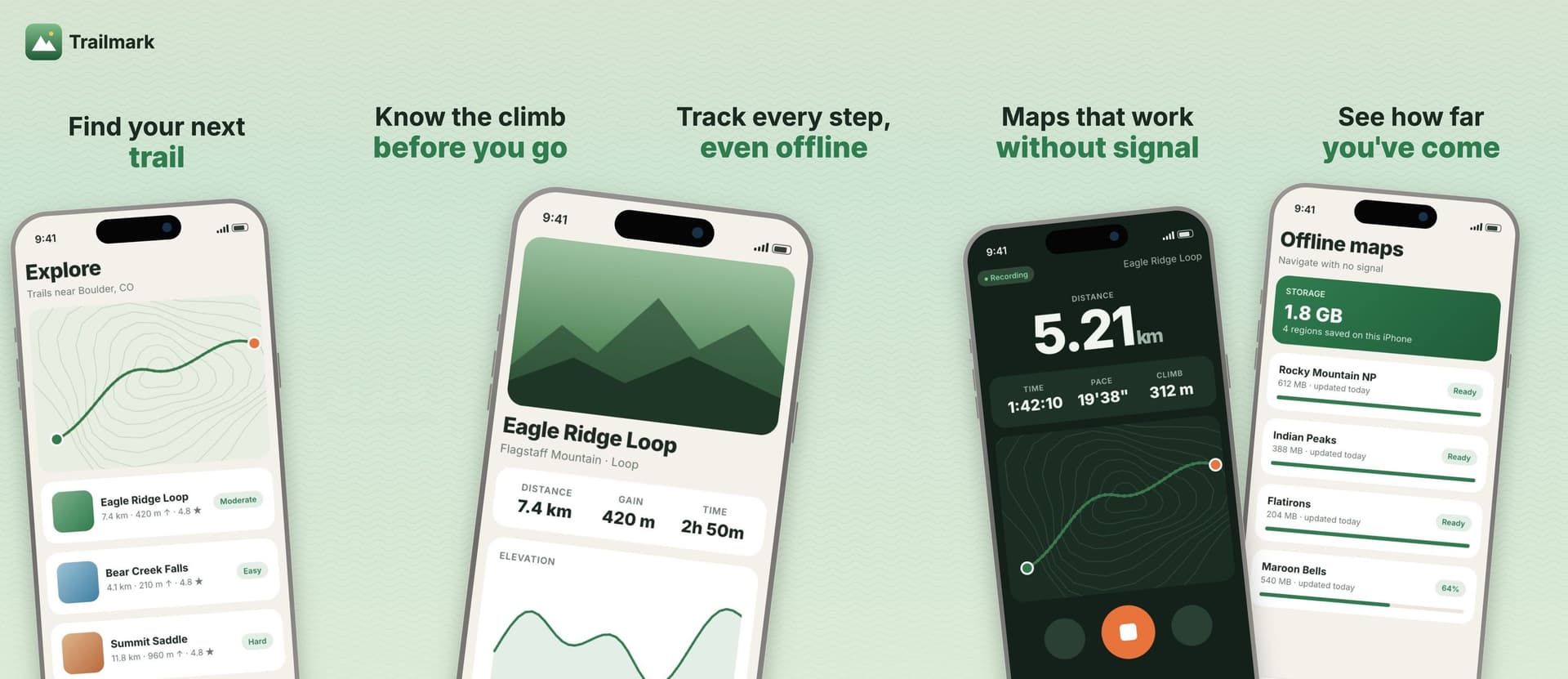
Google Play asks for fewer files than the App Store, but its rules are stricter about shape. Your Google Play screenshot size has to stay within a 2:1 ratio, the feature graphic is a fixed 1024 × 500, and the icon is 512 × 512. This guide covers every Play Store image and the promo video, device by device.
Everything below comes from Play Console Help's page on preview assets and Google's icon design specifications, checked in October 2026.
The short version
The short description has an 80 character limit, if you're filling in the listing at the same time.
Google Play screenshot size
These rules apply to every screenshot you upload:
- JPEG or 24-bit PNG, no alpha channel.
- Shortest side at least 320 px.
- Longest side at most 3840 px.
- The longest side can't be more than twice the shortest side.
- At least 2 screenshots in total, across device types.
- Up to 8 screenshots per device type.
Device types are phones, 7-inch tablets, 10-inch tablets, Chromebooks, Android TV, Wear OS watches, Android Automotive OS cars and Android XR headsets. Each has its own section under Graphics in Play Console.
The size Google recommends
The minimum rules get you published. Google's larger recommendation formats need more. To be eligible for recommendations that show screenshots:
- Apps need at least 4 screenshots at 1080 px or more. Use 16:9 for landscape, at least 1920 × 1080, or 9:16 for portrait, at least 1080 × 1920.
- Games need at least 3 landscape screenshots at 1920 × 1080 or more, or 3 portrait at 1080 × 1920 or more.
So the practical Google Play screenshot size for a phone app is 1080 × 1920 portrait, four to eight of them.
Why your App Store screenshots get rejected
Modern iPhone screenshots are taller than 2:1. A 1284 × 2778 App Store screenshot has a ratio of about 2.16, and 1320 × 2868 is about 2.17. Both break Play's rule that the long side can't be more than twice the short side. You need a separate 9:16 set for Play, not a copy of your App Store files.
Tablets and Chromebooks
The large screen section adds its own guidance:
- Add at least 4 screenshots.
- Use 16:9 for landscape and 9:16 for portrait.
- Leave out text that isn't part of the app. It can get cut off on Play homepages on some screen sizes.
That section says screenshots can be 1,080 to 7,680 px, but the general rule still caps any side at 3,840 px. Stay between 1,080 and 3,840 and you meet both. A 1920 × 1080 landscape or 1080 × 1920 portrait file works.
Wear OS
- At least one screenshot of the current version on Wear OS.
- 1:1 aspect ratio, at least 384 × 384 px.
- The app interface only. No device frames, extra text, graphics or backgrounds.
- No transparent backgrounds or masking.
Watch faces follow the same rules. If the face is customizable, show more than one variant.
Android TV
You need at least one TV screenshot to publish a TV app, plus the 1280 × 720 TV banner. TV screenshots only show on Android TV devices.
Android Automotive OS
If you provide car screenshots, add at least 2 portrait at 800 × 1280 and 2 landscape at 1024 × 768. They must show the generic system UI, not a specific car maker's. Screenshots are required unless the app sits in one of the parked app categories.
Android XR
Upload 4 to 8 screenshots, PNG or JPEG, up to 8 MB each, in an 8:5 ratio. Google recommends 3840 × 2400, with 1920 × 1200 as the minimum.
Feature graphic
The feature graphic is required to publish. Google uses it as the cover of your preview video and in large-format collections of apps, including ads.
- Size: 1024 × 500 px.
- Format: JPEG or 24-bit PNG, no alpha.
Google's design guidance for it:
- Keep the logo, app name, slogan and main UI near the center. Edges can be cut off depending on where the graphic appears.
- Don't repeat your app icon as the main element. The icon usually sits right next to it.
- Avoid pure white, black or dark gray backgrounds. They blend into the Play Store.
- Skip device imagery and store badges.
- No ranking or price words like "Best", "#1", "Top", "New", "Free" or "Sale".
- Avoid fine detail. It disappears on phone screens.
If you add a preview video, a play button appears over the feature graphic whenever the video doesn't autoplay.
App icon
- 512 × 512 px, 32-bit PNG, max 1024 KB.
- Full square. Google Play adds the rounded corners (a radius of 30% of the icon size) and the shadow.
- Google asks you to avoid transparency and use a brand background color.
- No badges or text that suggest ranking, price or a Play category.
This icon is for the listing. It doesn't replace the launcher icon inside your app. Our app icon size guide covers both.
Preview video
The video is optional. You add one YouTube URL in the preview video field.
- Use a single video URL, not a playlist or channel.
- No extra parameters like timecodes.
- Turn off ads. Disable monetization, or upload a version without monetization claims.
- Set it to public or unlisted, not private.
- No age-restricted videos.
- It must be embeddable.
The video plays before your screenshots on the listing. It can autoplay muted for up to 30 seconds, so Google suggests showing the real app in the first 10 seconds. Portrait and landscape both work. Don't leave black bars on the sides of a portrait video.
Android XR listings can add up to two more videos: a spatial one (360°, 180° or 3D) and a regular one shown on headsets.
Text on screenshots
Google's guidance for screenshot text:
- Taglines should take up no more than 20% of the image.
- Put real UI in the first three screenshots.
- No calls to action like "Download now" or "Play now".
- No ranking, award or price claims.
- Clean up the status bar. No carrier names or notifications, and full battery, Wi-Fi and signal icons.
- Add alt text to each image, 140 characters or less.
Stylized screenshots that spread one design across several images are allowed.
Make the graphics
Use AppScreen's feature graphic generator to build the 1024 × 500 image in your browser. It exports a JPG or a PNG with no transparency.
For screenshots, note that the AppScreen editor exports App Store sizes today. Google Play screenshot sizes aren't supported yet, so for now you'll need another tool or a manual 1080 × 1920 export for Play.
SourcesEvery number in this post comes from these pages.2 pages · Checked 1 Oct 2026
- support.google.com/googleplay/android-developer/answer/9866151All Play asset specs and rules
- developer.android.com/distribute/google-play/resources/icon-design-specificationsIcon corners, shadow, transparency
Something out of date? Email [email protected] and we'll re-check it.