Google Play feature graphic: size and rules
The Google Play feature graphic is 1024 × 500 px, JPEG or 24-bit PNG with no alpha. Where it shows, what can get it cut, and what to put on it.
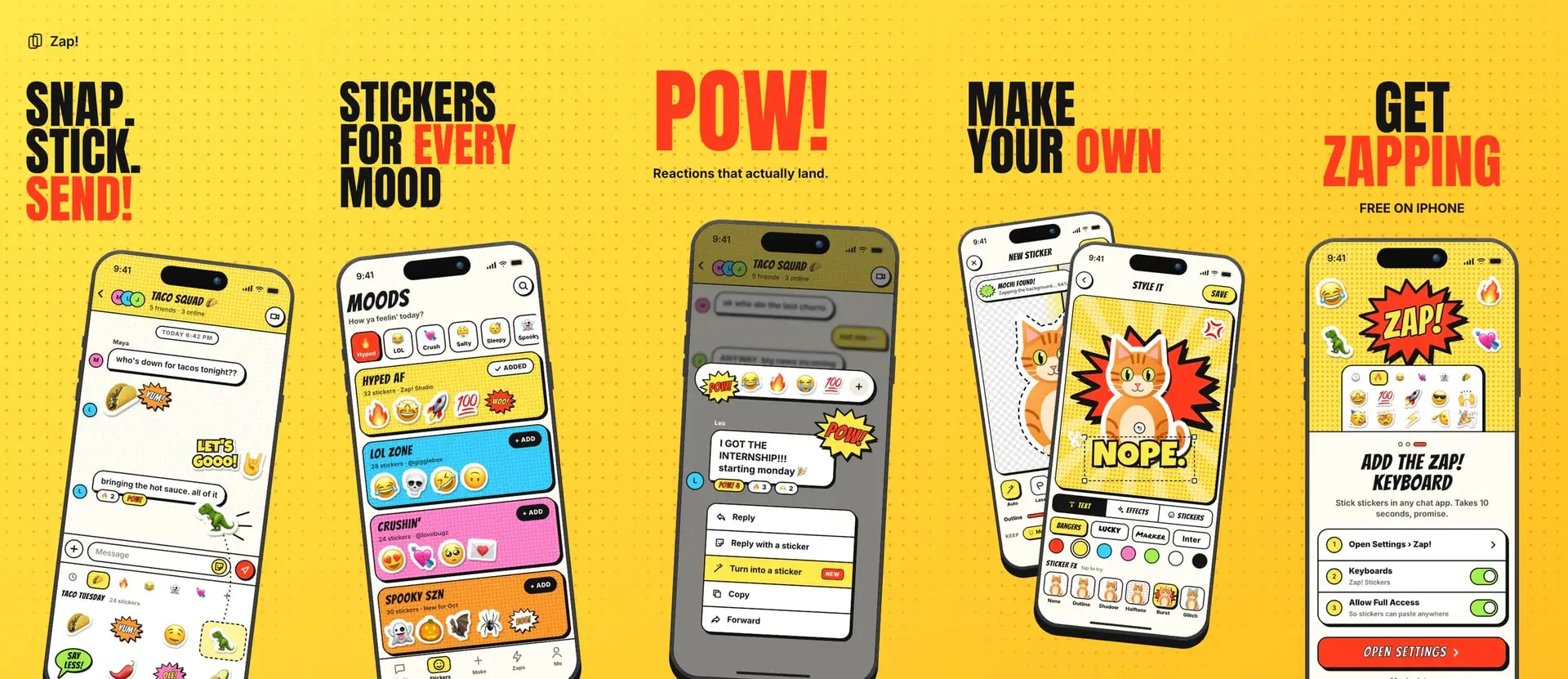
The Google Play feature graphic is 1024 × 500 pixels, saved as a JPEG or a 24-bit PNG with no alpha channel. You must provide one to publish your store listing. Those are the only hard rules. The rest of what Google says about it is a recommendation, but ignoring those recommendations can keep the graphic out of the placements it exists for.
Everything here comes from Play Console Help's page on preview assets, checked in November 2026.
Google Play feature graphic size and format
The size isn't quite 2:1. It works out to about 2.05:1, so a 1000 × 500 banner won't fit. Watch the PNG setting too. A 32-bit PNG carries an alpha channel even when every pixel is opaque, so export 24-bit or use JPEG.
You upload it in Play Console under Grow users > Store presence > Main store listing, in the Graphics section.
Where the Play Store feature graphic shows
Google says it appears in various places on Google Play, including:
- As the cover image for your preview video, if you have one. Spatial Android XR videos are the exception.
- For apps, in collections of apps shown in a large format, including ads.
- For games, in groups of recommended games shown in a large format with preview videos and screenshots.
Many guides say it sits at the top of every store listing. Google's page doesn't say that, so don't count on seeing it on your listing if you have no preview video. If you do add a video, a play button overlays the graphic whenever the video doesn't autoplay, so check that it doesn't cover your headline.
What makes a feature graphic fail
Google sorts its rules into two groups, and the penalties differ.
Requirements. These are the size and format above. Google says failing a requirement "may result in removal or suspension from Google Play."
Highly recommended. This covers everything in the next section. Google says missing these guidelines "will not impact your store listing page", but it may change how the graphic appears or limit promotional opportunities.
The cutoff zones are where that bites. Google says key elements placed there may be cut off, and that ignoring the focal point and cutoff zones "may result in ineligibility to appear in these formats."
Google draws those zones as red bands on all four sides of a diagram and gives no pixel values. We measured the diagram. Each band takes about 15% of the width or height it sits on, which leaves a center area of roughly 720 × 350 on a 1024 × 500 file. Treat that as our estimate, not Google's number. You'll see a 924 × 400 safe frame quoted on other sites, but it isn't on Google's page, and it's looser than Google's diagram.
What to put on it
Google recommends that you:
- Show the app's experience and core value.
- Keep the focal point toward the center, and push background elements to the edges.
- Extend your icon's branding instead of repeating it, because the two can appear side by side.
- Skip fine detail, which won't be visible on many phone screens.
- Use bold colors. Pure white, black and dark gray blend into Google Play's background.
- Match the color theme and style of your icon and app.
- Localize any text for each market.
Leave these off:
- Words that suggest ranking, awards or price, such as "Best", "#1", "Top", "New", "Free", "Discount", "Sale" or "Million Downloads".
- Device imagery, which Google says can become obsolete or alienate some users.
- Any store's badge or icon, Google Play's included.
- Third-party trademarked characters or logos you don't have permission to use.
- Time-sensitive content. If you run a holiday version, swap it out on time.
That points to a plain layout. Put the app name and a short line about what the app does near the center, add a slice of your main UI beside them, and let the background run out to the edges.
Make a feature graphic
We make AppScreen (appscreen.pro), and our pick for this job is its free feature graphic generator, which builds this file in your browser. Add your app name, a tagline, two colors and a screenshot, then download a 1024 × 500 PNG or JPG with no transparency. It leaves out device frames and flags words like "Best" and "Free", both of which Google says to leave off.
Our guide to Google Play screenshot sizes covers the listing's other images. AppScreen builds the screenshots, with Android phones on Free and Android tablets on Pro. Open the editor when you get there.
SourcesEvery number in this post comes from these pages.1 page · Checked 3 Nov 2026
Something out of date? Email support@appscreen.pro and we'll re-check it.